> ## Documentation Index
> Fetch the complete documentation index at: https://docs.orbivon.com/llms.txt
> Use this file to discover all available pages before exploring further.
# Reset password of your account
There is no place to change your password. If you need to change your password, you must follow the password reset flow.
Resetting your password is simple and secure. Just follow the steps below to regain access to your account.
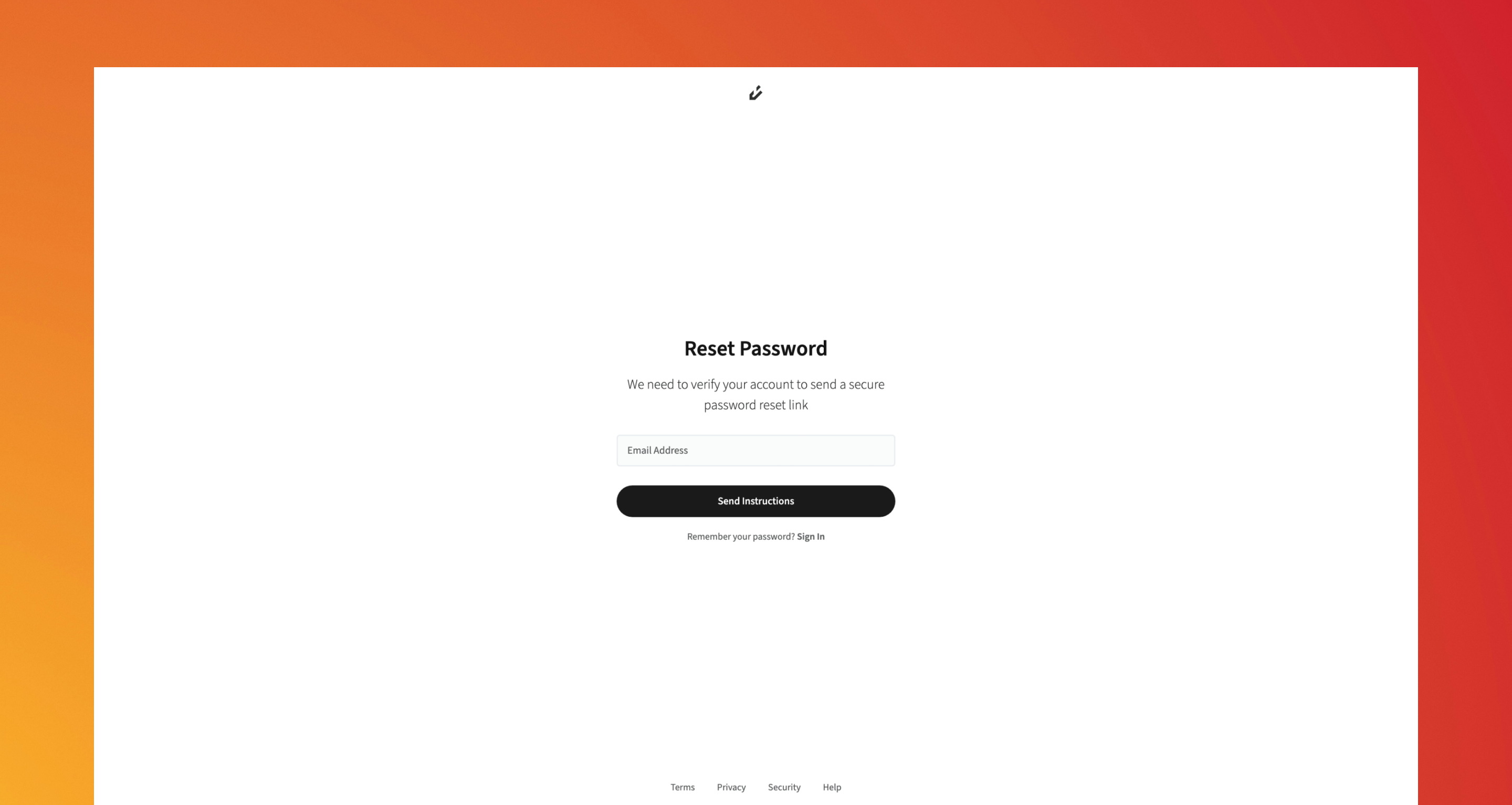 On the [Forgot Password](https://app.orbivon.com/password-reset) page, type in the **email address** associated with your account.
If the email exists in our system, a password reset email will be sent. If the email does not exist, for **security reasons**, you won’t see an error message, the page will behave the same way.
Look for an email from us with password reset instructions. Check your **Inbox**, and if it’s not there, also look in **Spam** or **Junk** folders. The email contains a **secure reset link**. Click the link in the email. This will take you to the **Password Reset Page**.
This link is **one-time use only** and expires after use. If it’s no longer valid, you’ll need to request a new reset email.
Enter your **new password** following the same security requirements used during sign-up. Once submitted, your password will be updated, and you can immediately sign in with your new credentials.
On the [Forgot Password](https://app.orbivon.com/password-reset) page, type in the **email address** associated with your account.
If the email exists in our system, a password reset email will be sent. If the email does not exist, for **security reasons**, you won’t see an error message, the page will behave the same way.
Look for an email from us with password reset instructions. Check your **Inbox**, and if it’s not there, also look in **Spam** or **Junk** folders. The email contains a **secure reset link**. Click the link in the email. This will take you to the **Password Reset Page**.
This link is **one-time use only** and expires after use. If it’s no longer valid, you’ll need to request a new reset email.
Enter your **new password** following the same security requirements used during sign-up. Once submitted, your password will be updated, and you can immediately sign in with your new credentials.