> ## Documentation Index
> Fetch the complete documentation index at: https://docs.orbivon.com/llms.txt
> Use this file to discover all available pages before exploring further.
# User Account Settings
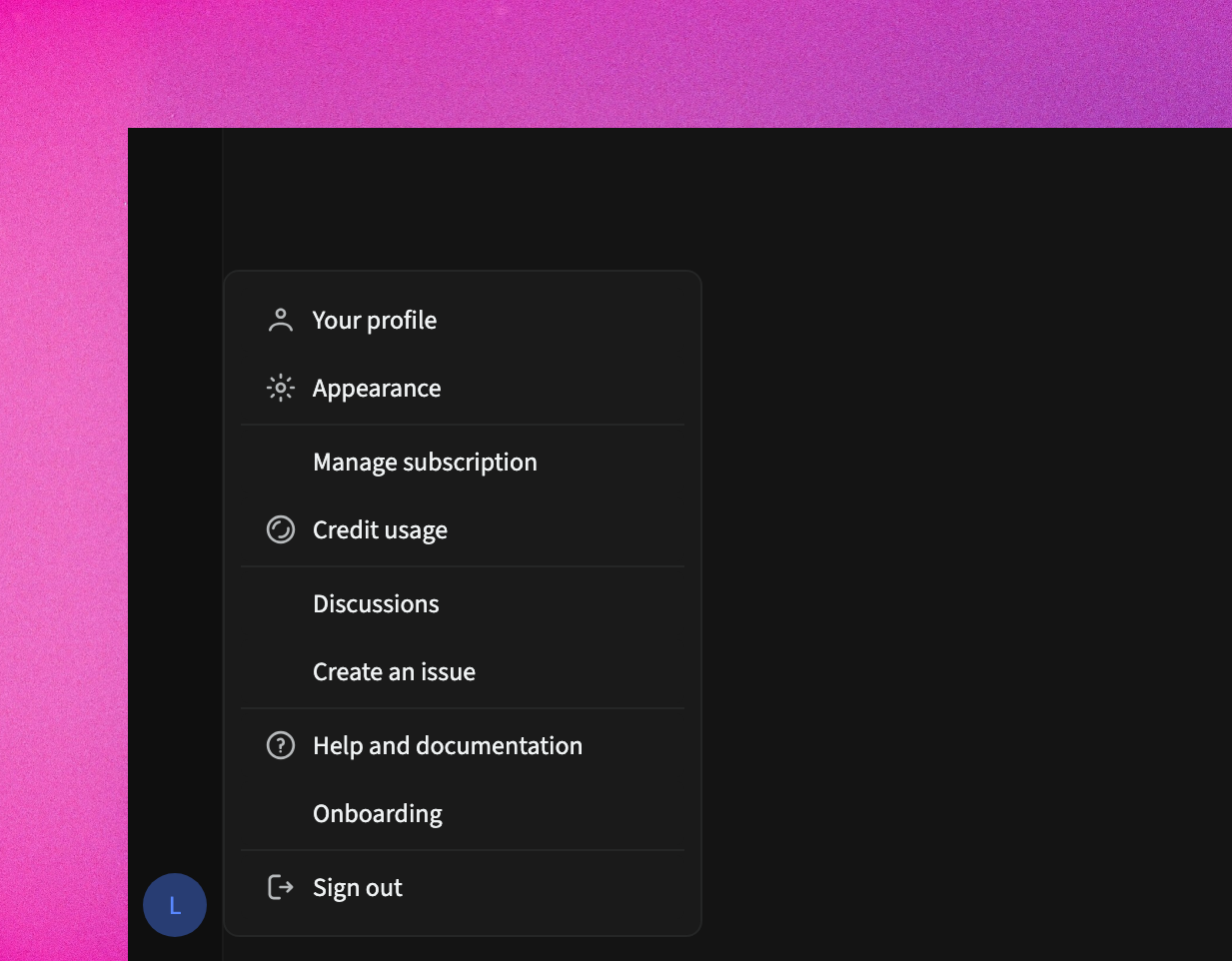
You can access your settings by clicking your profile image in the action panel and selecting **Profile Settings**.
 ## Account Overview
You can personalize your identity by updating your profile details, such as your name, display picture, and other personal information. These options are available:
1. Add or change your profile picture.
2. Update your first, middle, and last names.
## Account Security
You can manage your account credentials by changing your email address, user name. These options are available:
1. Change your username.
2. Update your email address.
3. For password changes, use the "Forgot Password" process.
## Application Appearance
You can customize your visual experience by choosing from three available themes, allowing you to switch between light, dark, or system mode based on your preference.
1. **Light theme**: Bright interface with dark text
2. **Dark theme**: Dark interface with light text
3. **System theme**: Automatically matches your browser or operating system theme
## Subscription
You can manage your subscription plan by upgrading, downgrading, or canceling your current plan from your account settings. Here are the available options:
1. View your current subscription details.
2. Explore available plans to upgrade or downgrade.
3. Click **Open Customer Portal** to cancel your subscription.
We use [Polar Sh](polar.sh) as our payment provider. For payment-related questions, please refer to [Polar Sh documentation](https://docs.polar.sh/introduction).
## Credits
You can monitor and manage your AI usage credits by checking your current usage, and purchasing additional credits when needed. Here are the available options:
1. Check your current credit usage.
2. Purchase additional credits as needed.
Credits come in two forms:
1. **Subscription credits**: Automatically added when you create or renew a subscription plan.
2. **Manual credits**: Purchased separately as needed through credit packages.
We deduct credits whenever you use AI features like asking questions or editing with Copilot.
Free accounts receive limited one-time credits for testing (typically enough for 3-4 questions). To buy additional credits, you must have an active paid subscription.
## Delete Account
You can permanently remove your account by following the account deletion process, which will erase all your data and settings from the platform.
1. Go to the Delete Account page in settings.
2. Follow the verification process.
3. Confirm deletion.
Cancel any active subscriptions before deleting your account to avoid future charges.
## Account Overview
You can personalize your identity by updating your profile details, such as your name, display picture, and other personal information. These options are available:
1. Add or change your profile picture.
2. Update your first, middle, and last names.
## Account Security
You can manage your account credentials by changing your email address, user name. These options are available:
1. Change your username.
2. Update your email address.
3. For password changes, use the "Forgot Password" process.
## Application Appearance
You can customize your visual experience by choosing from three available themes, allowing you to switch between light, dark, or system mode based on your preference.
1. **Light theme**: Bright interface with dark text
2. **Dark theme**: Dark interface with light text
3. **System theme**: Automatically matches your browser or operating system theme
## Subscription
You can manage your subscription plan by upgrading, downgrading, or canceling your current plan from your account settings. Here are the available options:
1. View your current subscription details.
2. Explore available plans to upgrade or downgrade.
3. Click **Open Customer Portal** to cancel your subscription.
We use [Polar Sh](polar.sh) as our payment provider. For payment-related questions, please refer to [Polar Sh documentation](https://docs.polar.sh/introduction).
## Credits
You can monitor and manage your AI usage credits by checking your current usage, and purchasing additional credits when needed. Here are the available options:
1. Check your current credit usage.
2. Purchase additional credits as needed.
Credits come in two forms:
1. **Subscription credits**: Automatically added when you create or renew a subscription plan.
2. **Manual credits**: Purchased separately as needed through credit packages.
We deduct credits whenever you use AI features like asking questions or editing with Copilot.
Free accounts receive limited one-time credits for testing (typically enough for 3-4 questions). To buy additional credits, you must have an active paid subscription.
## Delete Account
You can permanently remove your account by following the account deletion process, which will erase all your data and settings from the platform.
1. Go to the Delete Account page in settings.
2. Follow the verification process.
3. Confirm deletion.
Cancel any active subscriptions before deleting your account to avoid future charges.